
- Creating and Publishing a Form
- Instant Forms
- Conversational Form
- Create Multi Step Forms In WordPress
- Using Calculations in SureForms: A Step-by-Step Guide
- Calculation Formula Guide
- SureForms Login Block – Step-by-Step Guide
- SureForms Registration Block – Step-by-Step Guide
- SureForms – PDF Generation Feature
- GDPR Compliant Forms
- Adjust Form Notification Emails
- Form Confirmation
- Entries Management Feature Guide
- How to Add Query Parameters to Form Redirects
- How to Fetch Query Parameters from URL
- Set the “From Email” in SureForms
- Setting Up “Reply-To” Email Using Form Input Tags – SureForms
- Restrict Form Entries in SureForms
- Form Scheduling in SureForms
- Conditional Confirmations in SureForms
- SureForms Integration with ActiveCampaign
- SureForms Integration with AgileCRM
- SureForms Integration with Airtable
- SureForms Integration with LatePoint
- SureForms Integration with FluentCRM
- Connect SureForms To Zapier
- Automate WordPress Forms with the Custom App Builder
- SureForms Integration with Telegram
- SureForms Integration with Breeze
- SureForms Integration with Brevo
- Unable to Upload SureForms ZIP: File Unzipped On Download
- Browser Support for SureForms
- Not Getting Update Notifications
- How To Rollback to Previous SureForms Versions
- Publishing Failed: Invalid JSON Response
- Troubleshooting Email Sending In SureForms
- SureForm Submissions Marked as Spam – How to Fix
- API Request Failed – Nonce Verification Error
- Fixing the “Destination folder already exists” Error When Installing SureForms
- How to Set Up SureForms with Caching Plugins
- srfm_enable_redirect_activation
- sureforms_plugin_action_links
- srfm_quick_sidebar_allowed_blocks
- srfm_integrated_plugins
- srfm_suretriggers_integration_data_filter
- srfm_form_submit_response
- srfm_enable_gutenberg_post_types
- srfm_languages_directory
- srfm_form_template
- srfm_disable_nps_survey
SureForms – Quick Action Bar
The Quick Action Bar in SureForms is a convenient tool that provides quick access to your most-used SureForms blocks directly in the editor.
It helps speed up your workflow by keeping these blocks readily accessible, so you don’t have to search through the entire block library each time.
Why the Quick Action Bar Matters
Here’s why Quick Action Bar can enhance your form-building experience:
- Efficiency: The Quick Action Bar saves time by letting you access and insert frequently used blocks with a single click. This streamlines and improves your form-building process.
- Simplicity: It keeps the blocks you use most often within reach, making the form-building experience more intuitive and user-friendly.
- Flexibility: You can customize the Quick Action Bar by adding, removing, and rearranging blocks based on your current needs.
Next, we’ll show how you can actually use the Quick Action Bar in SureForms.
How To Use the Quick Action Bar In SureForms
When you open a form in the editor, you’ll see the Quick Action Bar on the left side. This panel displays a selection of SureForms blocks for easy access.
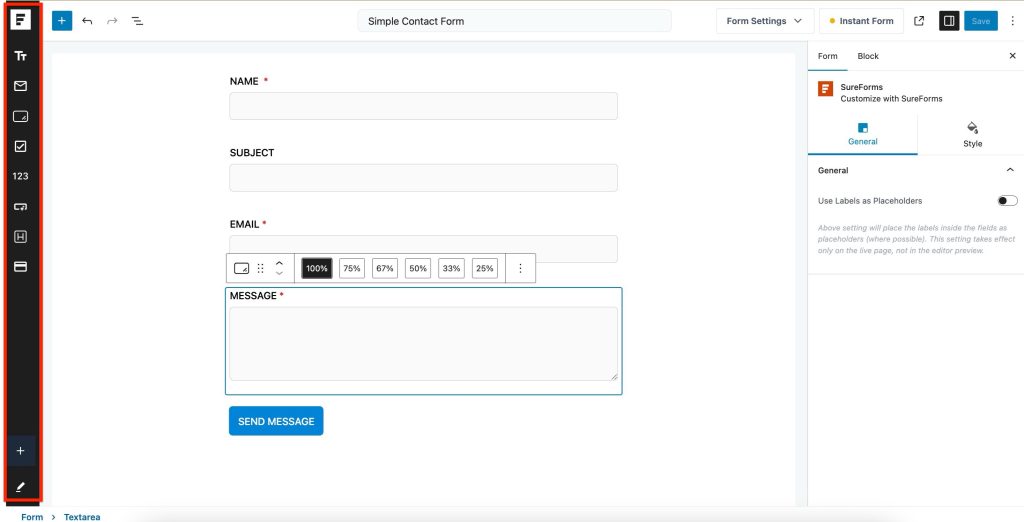
You can insert a block into your form by either clicking on it or dragging it to your desired location.
Adding or Removing Blocks From the Quick Action Bar
Adjusting the blocks in the Quick Action Bar ensures you have quick access to the ones you use most. Here’s how to manage the blocks:
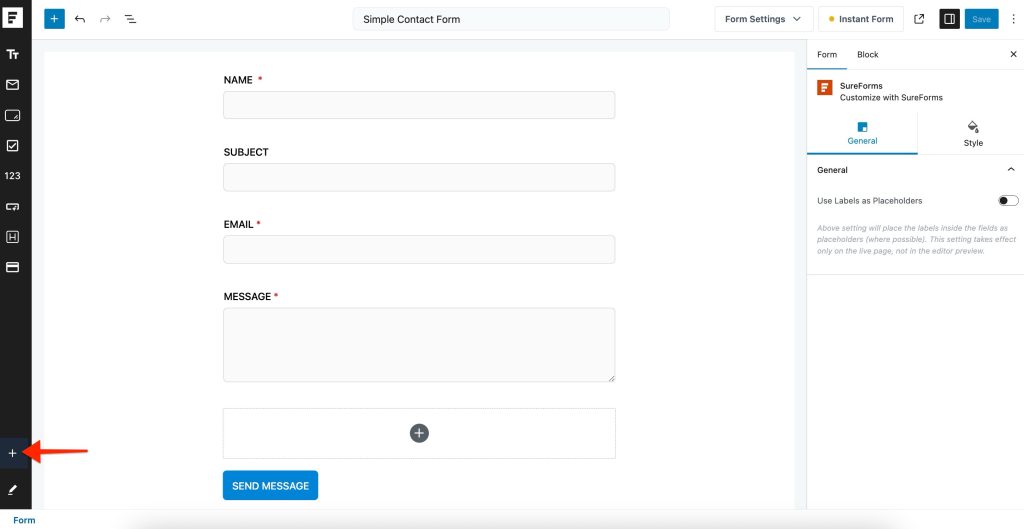
- Click the “+” icon at the bottom of the Quick Action Bar.
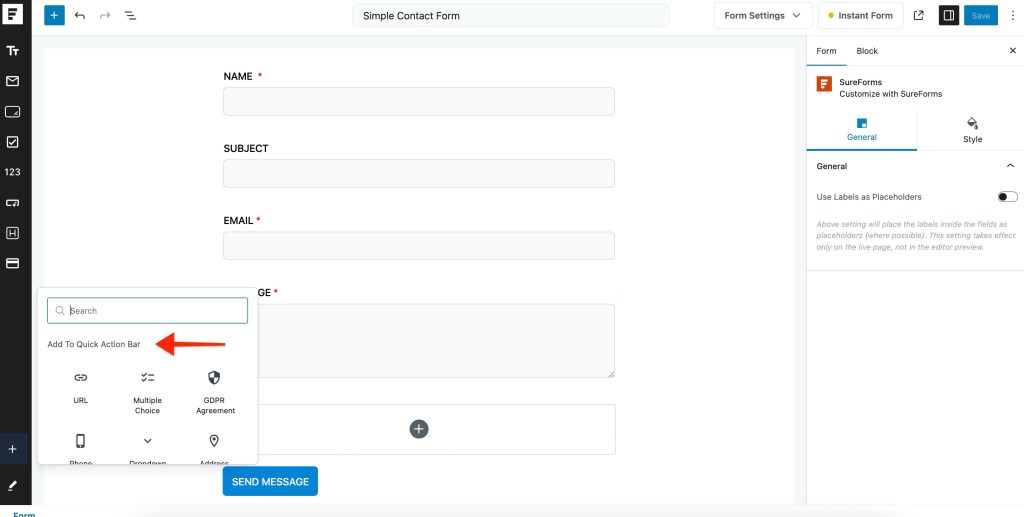
- Browse through all the SureForms blocks and click the ones you want to add. Once clicked, they will be automatically added to your Quick Action Bar.
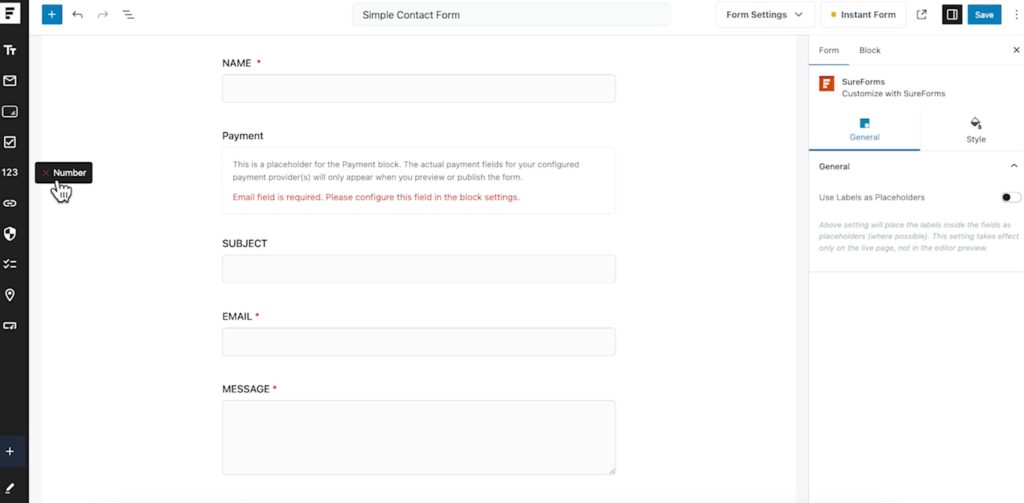
To remove a block:
- Hover over the block you want to remove.
- Click the “X” icon that appears and turns red to remove it from the Quick Action Bar.
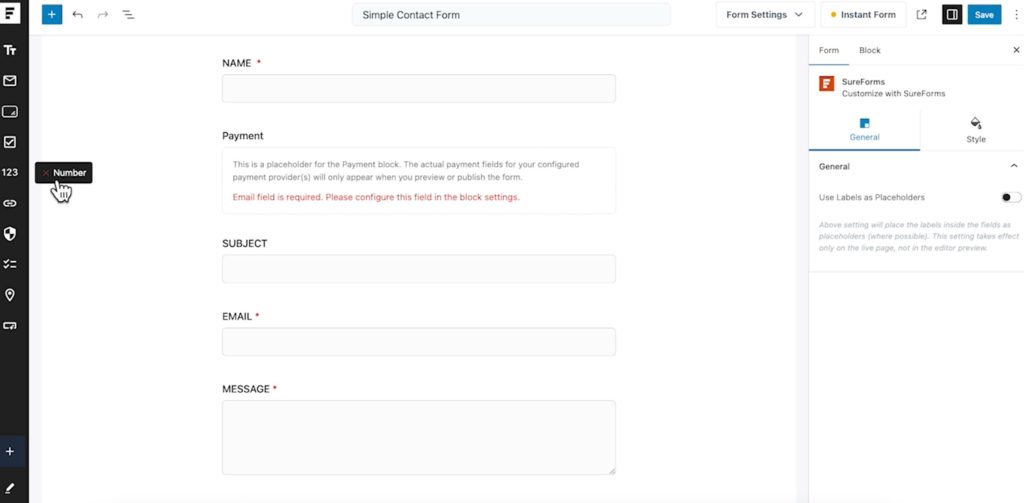
The block will be removed from your Quick Action Bar.
Rearranging Blocks in the Quick Action Bar
Rearranging blocks in the Quick Action Bar helps you organize them in a way that matches your workflow. Here’s how you can do it:
- Click on the following “pen” icon.
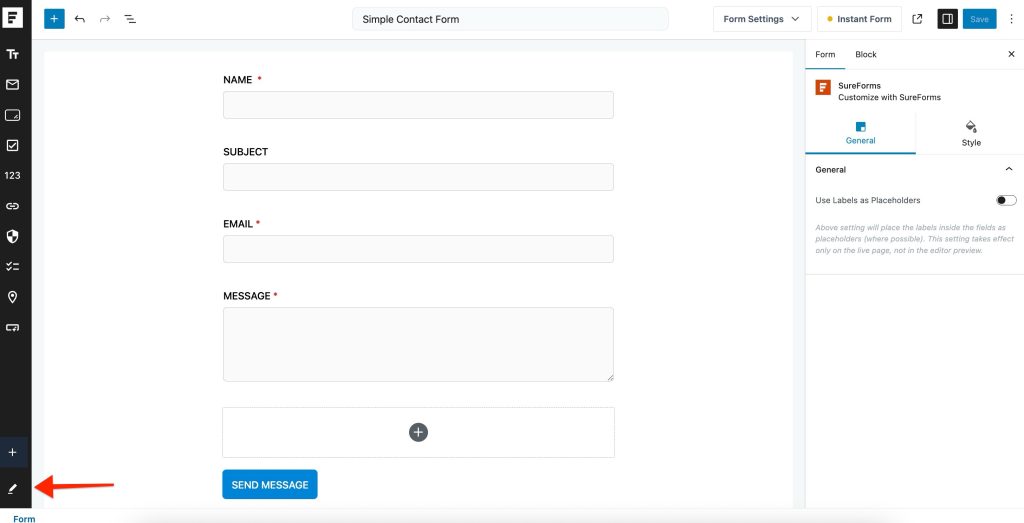
- Now, you can simply drag to rearrange different block items in your Quick Action Bar. For example:
Once you’re done rearranging these block items, click anywhere in the editor to exit the rearranging screen.
That’s all! We hope this document has been helpful. If you have any further queries, feel free to leave a comment below.
We don't respond to the article feedback, we use it to improve our support content.