
- Creating and Publishing a Form
- Instant Forms
- Conversational Form
- Create Multi Step Forms In WordPress
- Using Calculations in SureForms: A Step-by-Step Guide
- Calculation Formula Guide
- SureForms Login Block – Step-by-Step Guide
- SureForms Registration Block – Step-by-Step Guide
- SureForms – PDF Generation Feature
- GDPR Compliant Forms
- Adjust Form Notification Emails
- Form Confirmation
- Entries Management Feature Guide
- How to Add Query Parameters to Form Redirects
- How to Fetch Query Parameters from URL
- Set the “From Email” in SureForms
- Setting Up “Reply-To” Email Using Form Input Tags – SureForms
- Restrict Form Entries in SureForms
- Form Scheduling in SureForms
- Conditional Confirmations in SureForms
- SureForms Integration with ActiveCampaign
- SureForms Integration with AgileCRM
- SureForms Integration with Airtable
- SureForms Integration with LatePoint
- SureForms Integration with FluentCRM
- Connect SureForms To Zapier
- Automate WordPress Forms with the Custom App Builder
- SureForms Integration with Telegram
- SureForms Integration with Breeze
- SureForms Integration with Brevo
- Unable to Upload SureForms ZIP: File Unzipped On Download
- Browser Support for SureForms
- Not Getting Update Notifications
- How To Rollback to Previous SureForms Versions
- Publishing Failed: Invalid JSON Response
- Troubleshooting Email Sending In SureForms
- SureForm Submissions Marked as Spam – How to Fix
- API Request Failed – Nonce Verification Error
- Fixing the “Destination folder already exists” Error When Installing SureForms
- How to Set Up SureForms with Caching Plugins
- srfm_enable_redirect_activation
- sureforms_plugin_action_links
- srfm_quick_sidebar_allowed_blocks
- srfm_integrated_plugins
- srfm_suretriggers_integration_data_filter
- srfm_form_submit_response
- srfm_enable_gutenberg_post_types
- srfm_languages_directory
- srfm_form_template
- srfm_disable_nps_survey
SureForms Payments
Overview
This guide explains how to view and manage the Payment Entries Log in SureForms. You can use this section to track all payments made through your forms, filter them by status or date, and open each payment for a detailed view.
Accessing the Payments
- Go to your WordPress Dashboard.
- Navigate to SureForms.
- Click on Payments.

This page shows a complete table of all payment entries.
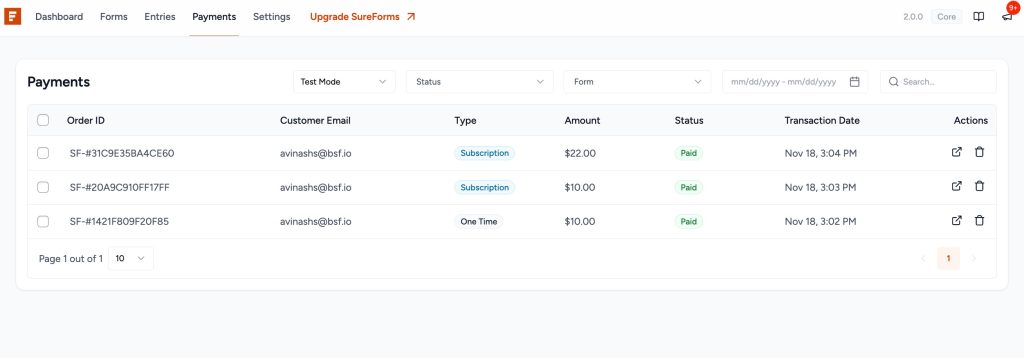
Filters and Search Options
SureForms provides multiple filters to help you quickly find payment records.
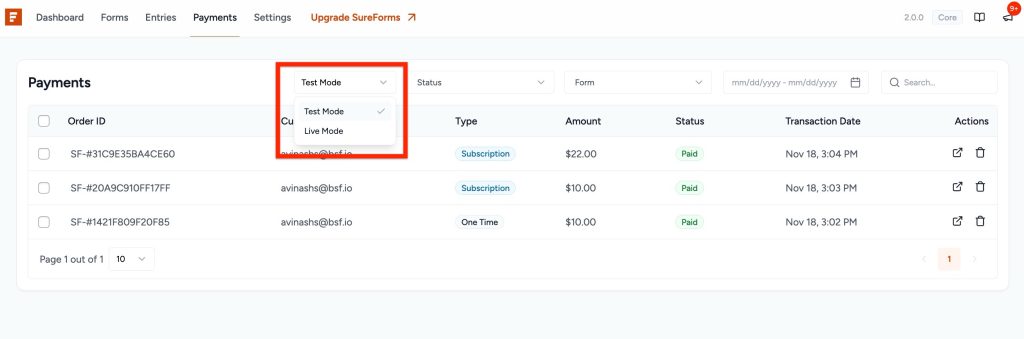
1. Test Mode / Live Mode
- Use this dropdown to switch between Test and Live transactions.
- If your site is in test mode, you will only see test transactions.
- If your site is live, you can view the live payment logs.
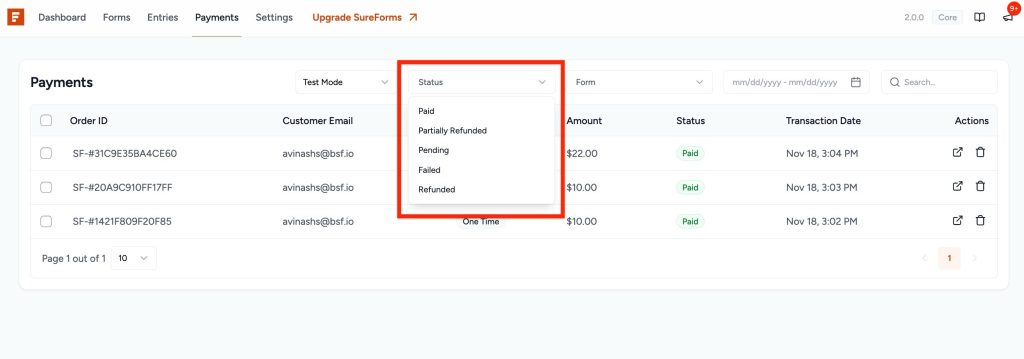
2. Status Filter
You can filter payments by their status:
- Paid
- Partial Refund
- Pending
- Failed
- Refunded
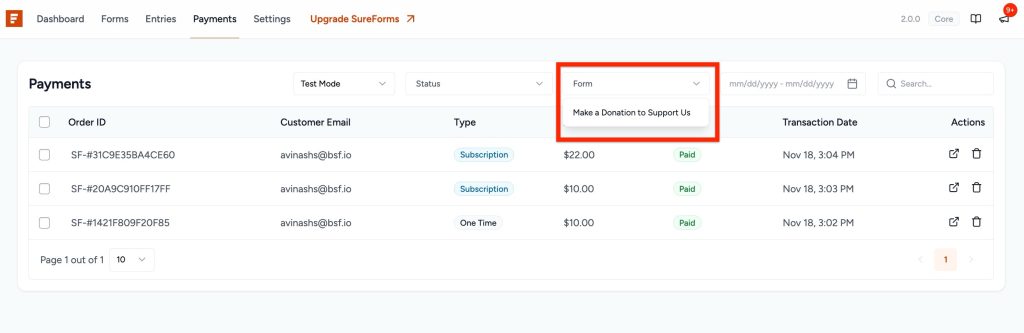
3. Form Filter
If you have multiple payment forms, you can select a specific form to view only the transactions related to that form.
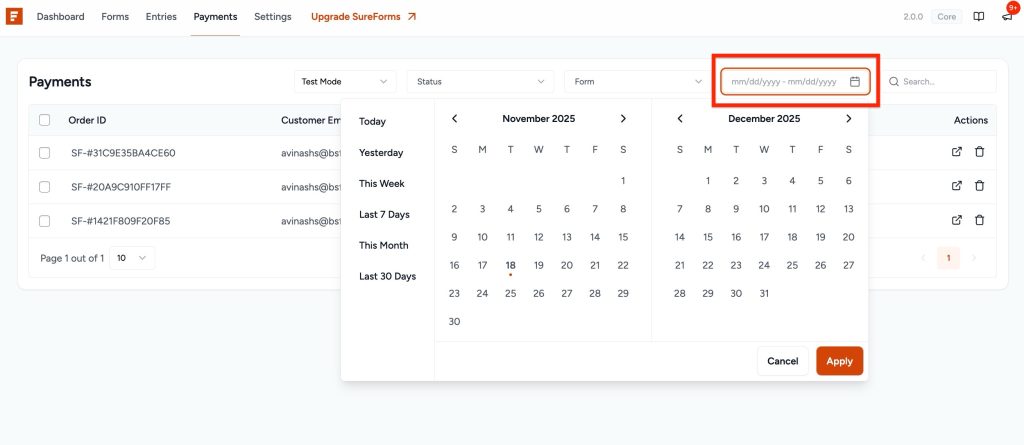
4. Date Range Filter
You can use the calendar to filter payment logs by time period. The default quick options include:
- Today
- Yesterday
- This Week
- Last Week
- This Month
- Last 30 Days
You can also select a custom date range and click Apply.
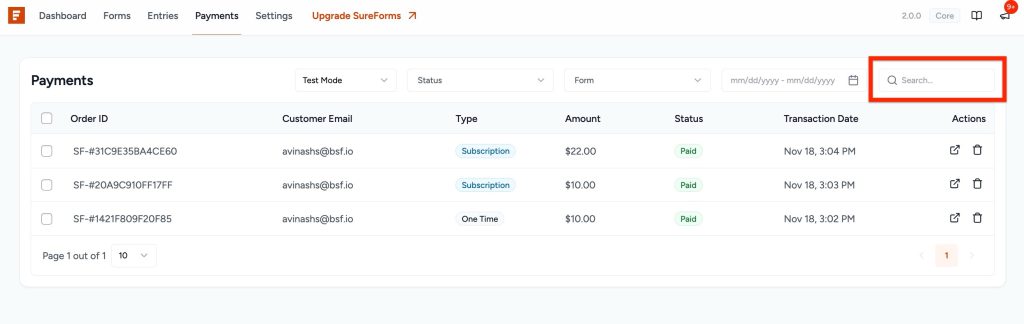
5. Search Bar
You can search payment entries using the customer’s email.
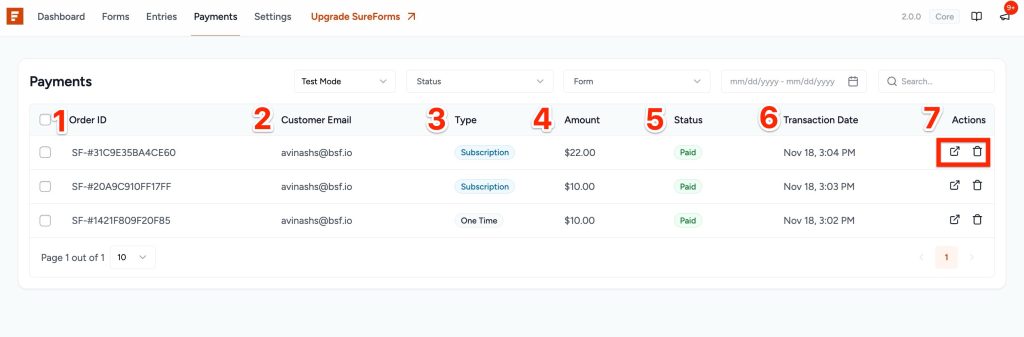
Payment Table Overview
The table displays:
- Order ID
- Customer Email
- Type (One Time / Subscription)
- Amount
- Status
- Transaction Date
- Actions (View Form / Delete Transaction)
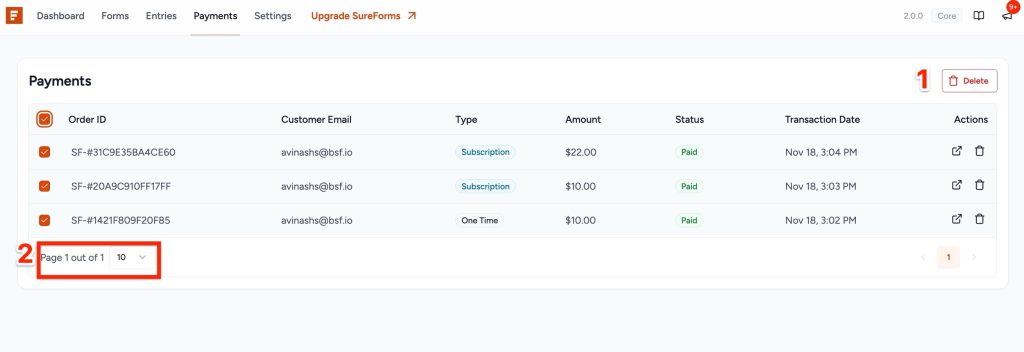
You can also:
- Select multiple records and delete them at once.
- Use the dropdown at the bottom to select how many logs to show per page (10, 20, 50, or 100).
Viewing an Individual Payment Entry
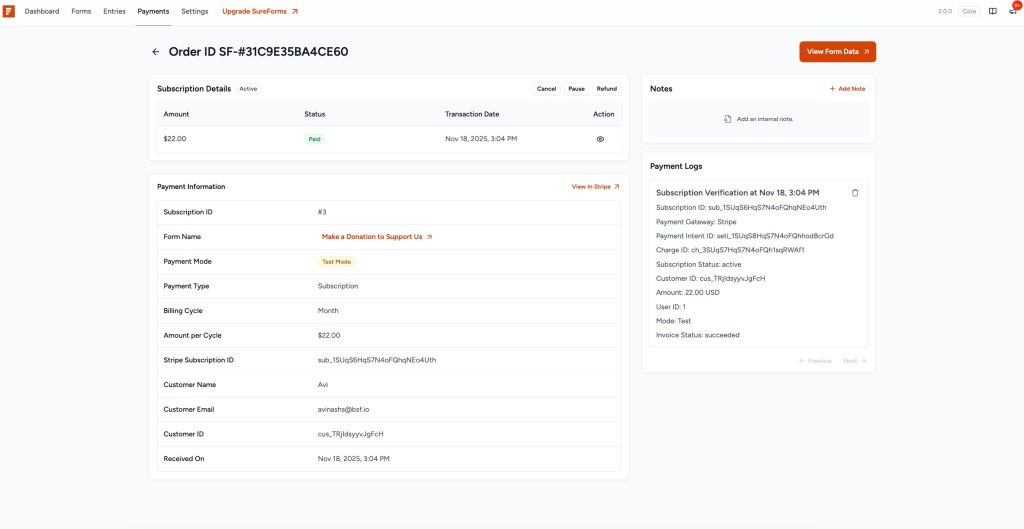
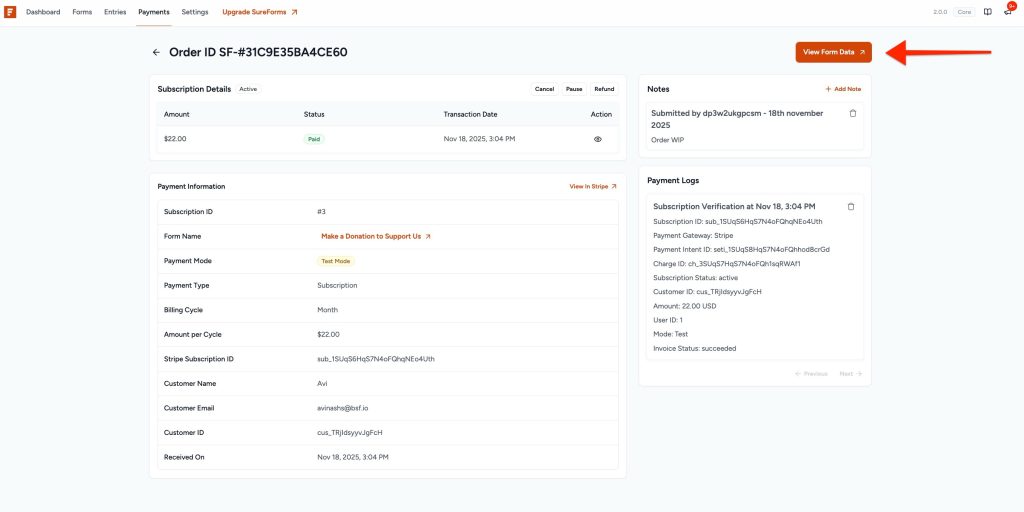
Click on any Order ID to open the full payment details.
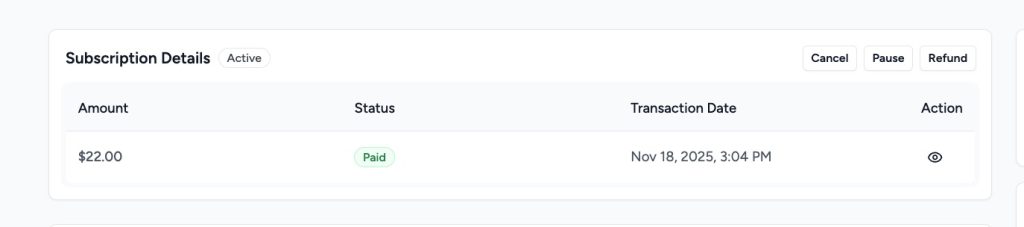
Billing Details
Here you will see:
- Amount
- Status
- Transaction Date
- Refund, Pause, Cancel button
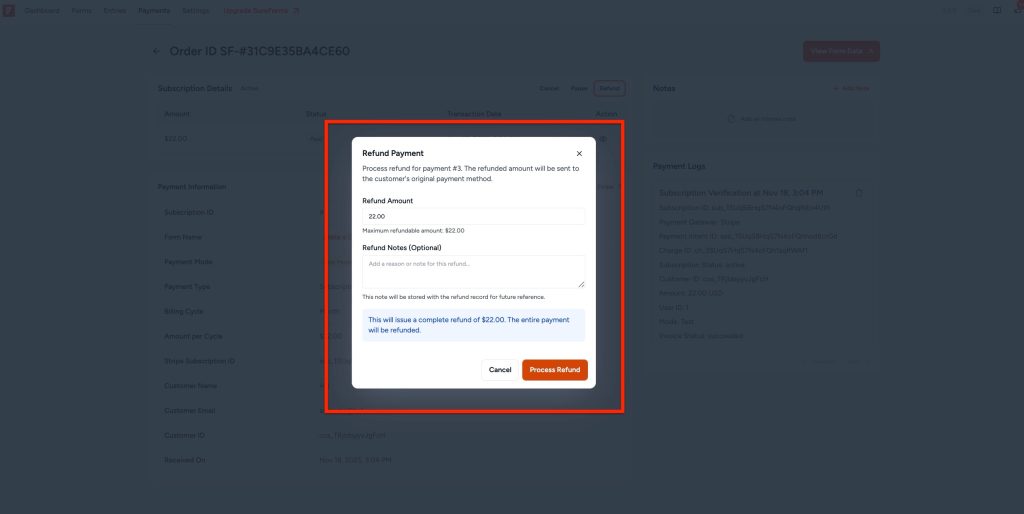
Refund Option
If needed, you can refund a payment.
- Click Refund.
- Enter the amount.
- Add a refund note explaining the reason.
- Click Proceed Refund.
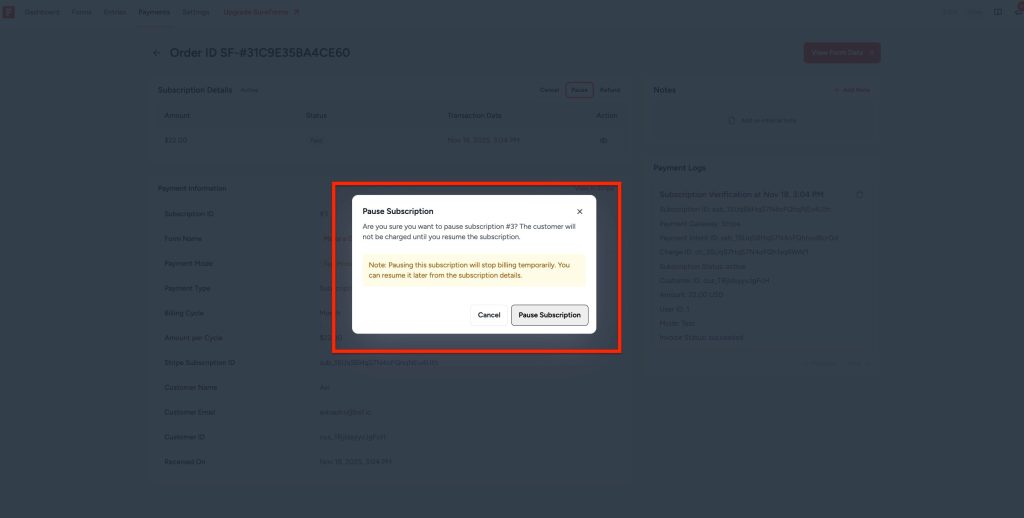
Pause Option (This option will appear with Subscription )
If needed, you can pause the subscription
- Click Pause
- A pop-up will appear; click the Pause Subscription button.
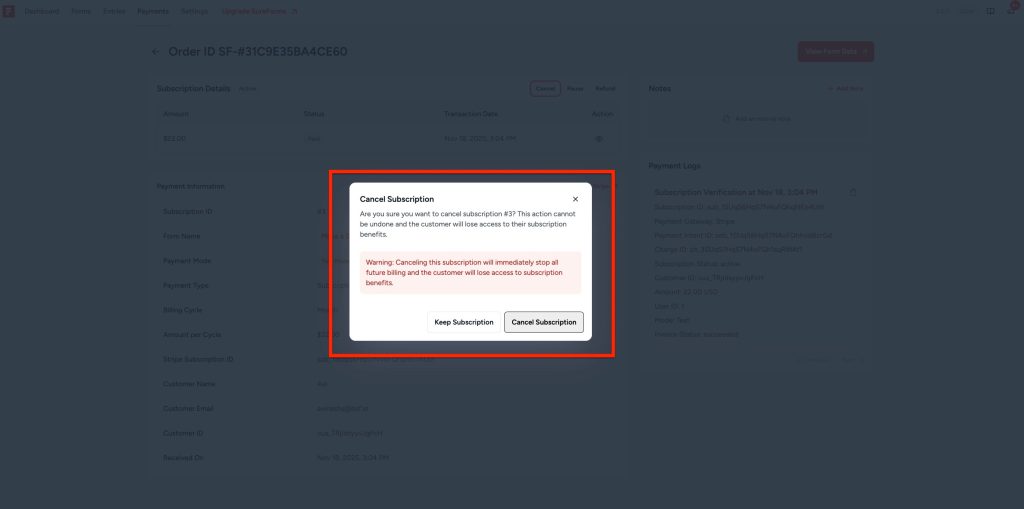
Cancel Option (This option will appear with Subscription )
If needed, you can cancel the subscription
- Click Cancel
- A pop-up will appear, click the Cancel Subscription button
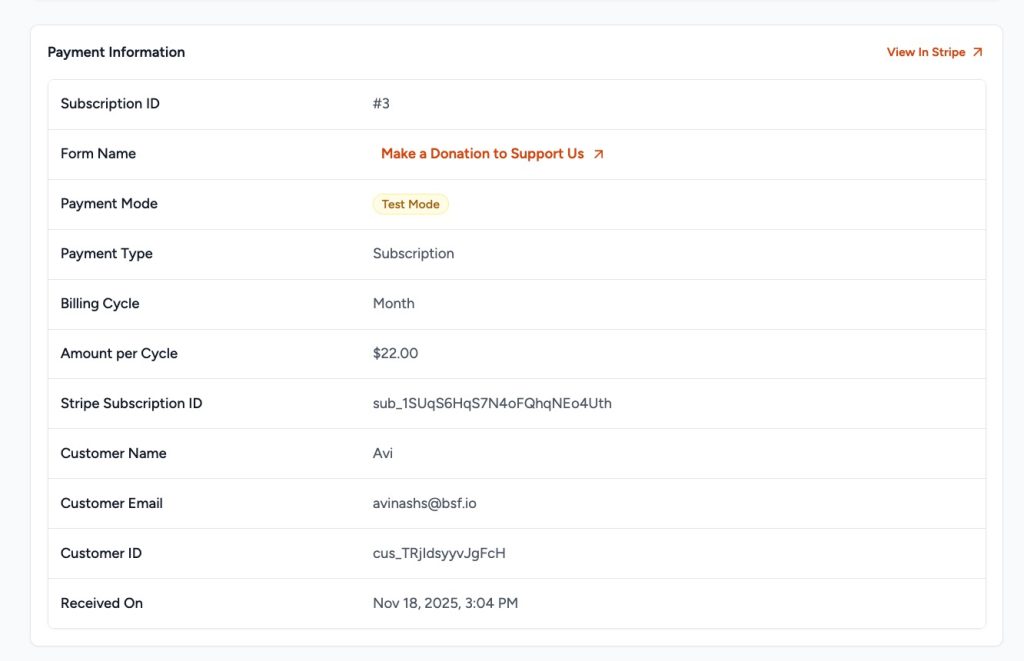
Payment Information
The payment details section includes:
- Payment ID
- Form Name
- Payment Mode (Test or Live)
- Payment Type (One Time / Subscription)
- Transaction ID
- Customer Name
- Customer Email
- Received On
You can also click View in Stripe to see the transaction directly inside your Stripe Dashboard.
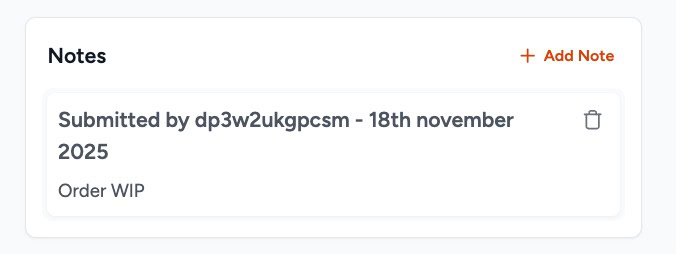
Notes Section
You can add internal notes to any payment entry.
- Click Add Note.
- Type your note and save.
- You can add multiple notes for tracking.
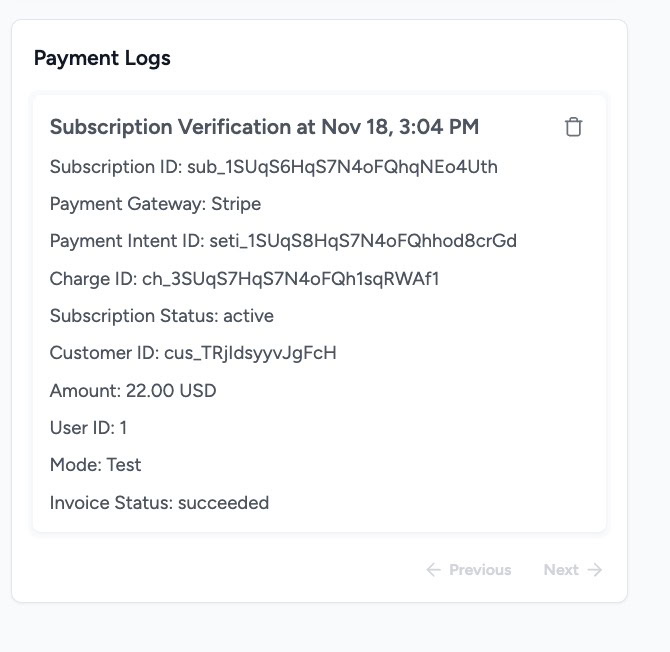
Payment Logs
Payment Logs help you understand the technical details of the payment.
A typical log includes:
- Payment Verification time
- Transaction ID
- Payment Gateway used
- Amount
- Status
- User ID
- Mode (Test or Live)
Viewing Form Data
Click View Form Data to open the related form entry.
Here you will see:
- Field values submitted in the form (email, phone, etc.)
- Entry number
- IP address
- URL
- Browser
- Device
- User
- Status
- Submission date and time
You can also edit the entry if required.
We don't respond to the article feedback, we use it to improve our support content.